Replacing an internet connection or router can affect much more than browsing. A Dubai villa may depend on the network for smart-home controllers, cameras, doorbells, intercoms, audio, televisions, printers, energy monitoring, irrigation gateways, remote support and family devices. Unplugging the old router before recording its role can turn a planned upgrade into hours of uncertain resets.
A controlled migration separates the provider connection from the home network, preserves known-good settings where appropriate and tests each important system after cutover. Duneva’s villa Wi-Fi and home-network service can coordinate the connected-home brief while the internet provider, network vendor, security contractor and other specialists retain their own equipment and responsibilities.
Identify what is actually being replaced
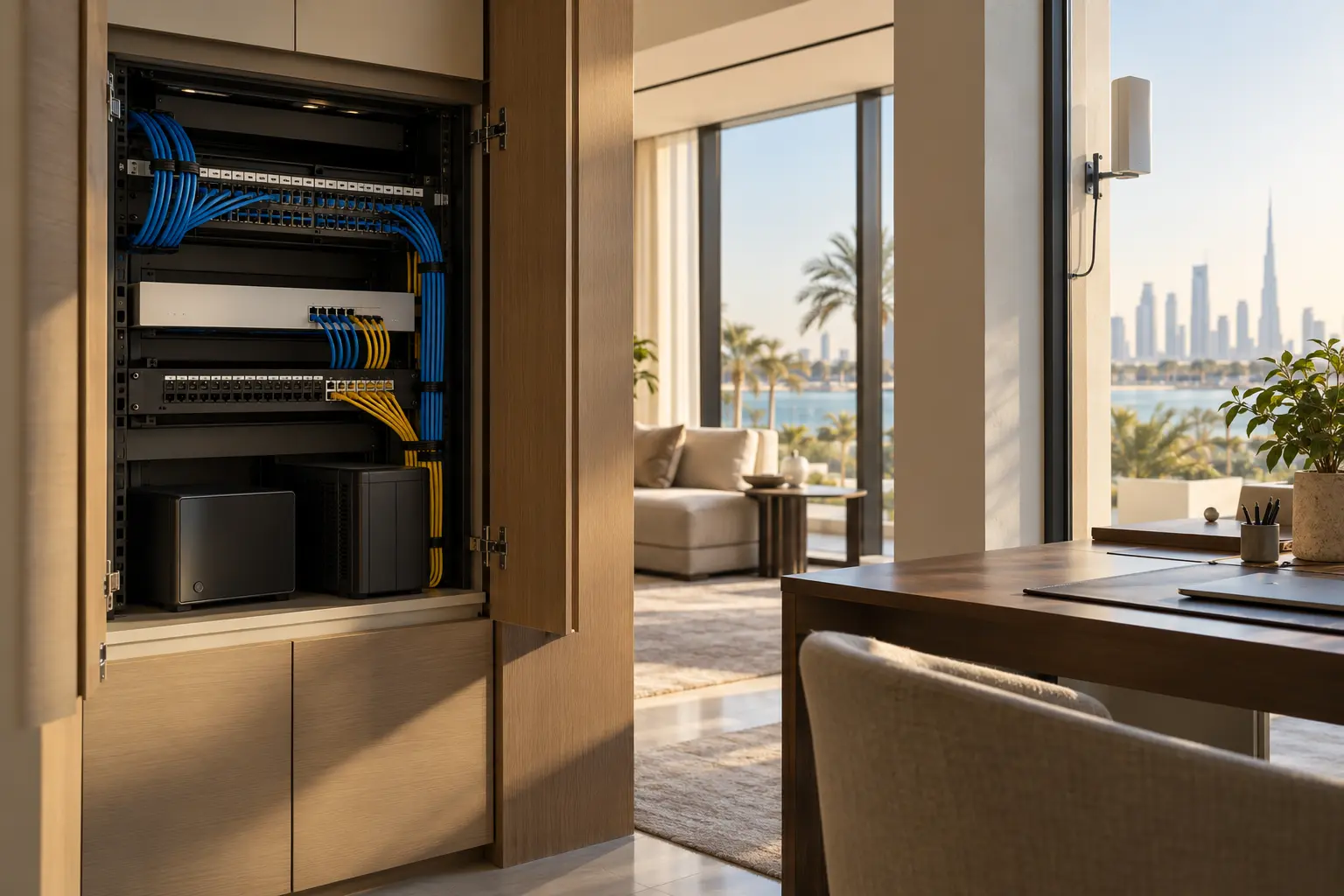
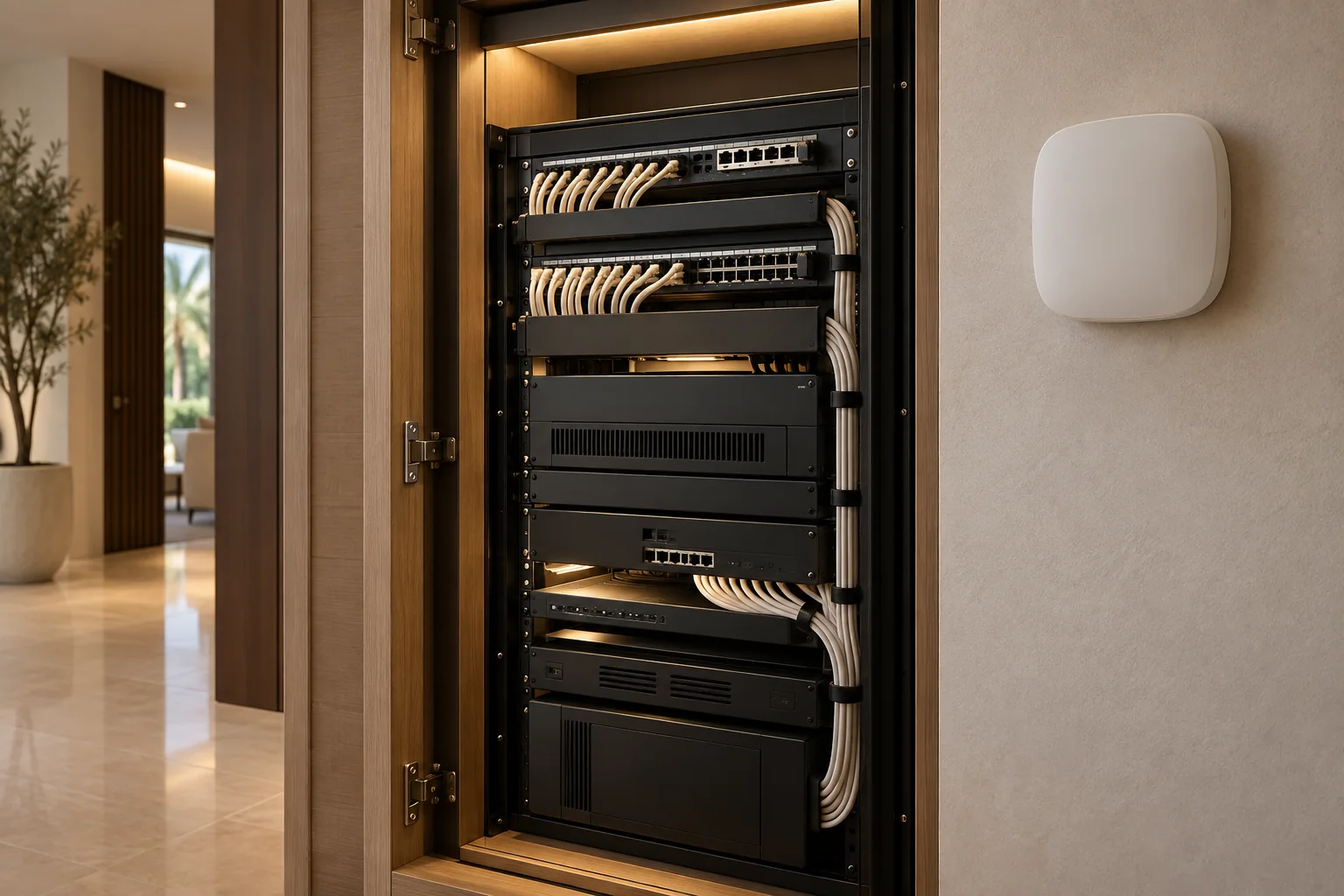
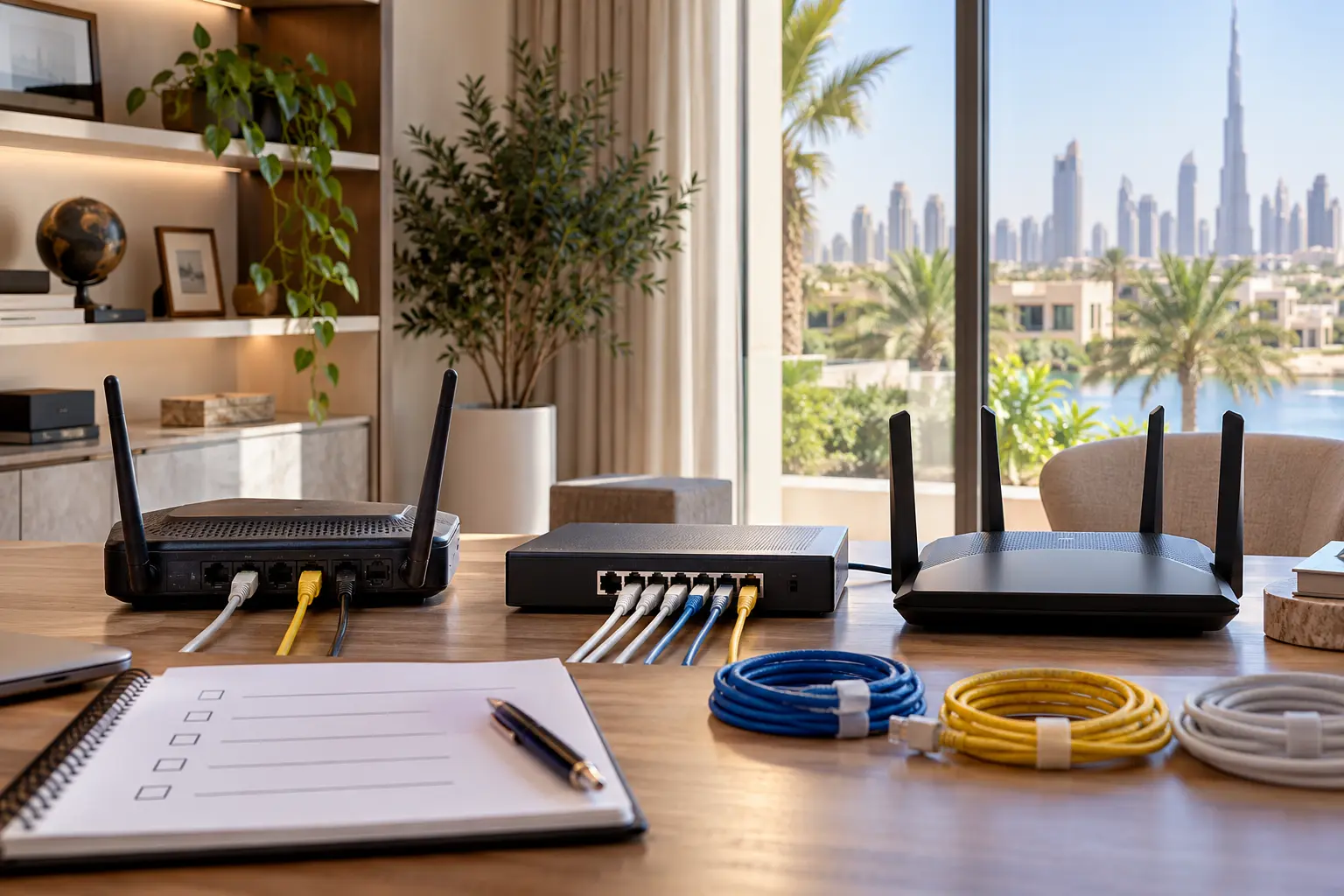
Start at the incoming service. Record the provider termination device, modem or optical network terminal, provider gateway, owner router, firewall, switches, wireless access points, mesh nodes and any separate controller. A single plastic box may currently perform several roles: internet authentication, routing, firewall, DHCP, Wi-Fi and voice service.
Mark which equipment belongs to the provider and which belongs to the property. Ask whether the new service requires its own gateway, bridge mode, PPPoE credentials, a static address, tagged networks, television or telephone configuration. Do not assume the new provider can reproduce a custom villa network, or that the automation contractor controls the provider equipment.
The villa Wi-Fi planning guide helps turn rooms, access points and wired links into a documented acceptance plan before equipment is disturbed.
Capture the existing network before making changes
Export a supported configuration backup and take an inventory of network names, security mode, subnets, DHCP ranges, reservations, access-point names, wired uplinks, guest networks, VLANs and remote-management ownership. Keep passwords, recovery codes and public-address details in a protected owner record, not in a general contractor worksheet.
Photograph cable labels and ports from safe viewpoints. Record where the automation controller, camera recorder, intercom, audio equipment and smart-home gateways connect. Do not unplug unlabelled cables simply to see what stops working.
For managed networks, use the vendor’s current backup process. Ubiquiti’s UniFi backup and migration guidance describes restoring a Network application backup when moving to supported UniFi consoles. That workflow is product-specific; it is not a general instruction for another router or a claim that every setting will transfer unchanged.
Decide whether to preserve the Wi-Fi identity
Using the same network name and password can allow many Wi-Fi devices to reconnect, reducing disruption. It is not a universal guarantee. Security mode, frequency bands, radio settings, device memory, certificates and vendor onboarding methods can still differ. Reusing weak or shared credentials also wastes an opportunity to improve ownership and security.
Google’s current new Wi-Fi network guidance says Nest and Home devices need to be connected to the new network after router or credential changes, with some models requiring reset and setup again. Its product-specific camera guidance notes that keeping the previous network name and password will usually work, but some cameras may need re-adding and important clips should be saved first.
Choose one of two paths deliberately. Preserve the existing Wi-Fi identity when it is secure, owner-controlled, compatible and well documented. Use a planned new identity when credentials are unknown, ownership is changing, the old design is weak or a wider security redesign is justified. Do not rename networks casually midway through the cutover.
Reproduce only the settings the design needs
Apple’s recommended router settings cover consistent network names, modern security, firmware and other settings intended to improve reliability and security with Apple devices. Treat those as platform guidance, not a one-size-fits-all configuration for every accessory. Read the current documentation for all important platforms and the actual router model.
Preserve required address reservations and network separation so controllers, recorders and gateways remain reachable through their supported design. Avoid giving the new network the same subnet as the provider gateway if that creates an addressing conflict. If a provider gateway and owner router both perform routing, confirm whether double NAT affects remote access, VPNs, games, intercoms or support tools.
Do not expose cameras, controllers or administration pages directly to the internet as a shortcut. Recreate approved remote access through the supported platform, VPN or specialist process.
Stage the cutover and keep a rollback path
Choose a quiet period when the owner, network specialist and affected contractors can test. Avoid changing the network just before travel, an event, a security-system service window or extreme weather. Tell the household what may be unavailable and keep physical keys, local controls and specialist contacts ready.
Where the equipment and service allow it, prepare the new router offline, update supported firmware, create the planned networks and restore only a compatible backup. Label new cables before swapping. Keep the old router and its configuration intact until acceptance is complete.
Define the rollback point. If the new provider service is not active, the WAN settings are wrong or essential systems cannot reconnect safely, the team should know how to return to the last working connection without resetting field devices.
The resilient internet and cellular-failover guide helps separate a temporary backup path from a permanent router migration. Failover is not proof that every local network service was preserved.
Reconnect systems in a sensible order
Bring back the network core first: gateway, main switch, wired infrastructure, access points, DNS and time services. Confirm a laptop can reach the internet with cellular data turned off. Then verify the automation controller and local user interfaces before cloud integrations.
Reconnect entrance, security and environmental systems with their appointed specialists. Cameras and doorbells may require onsite action, owner approval or saved footage before reset. Cooling, lighting, shading, water and energy systems may have local control even while remote apps remain offline. Do not factory-reset a controller merely because its mobile tile has not returned.
Continue with audio, televisions, voice assistants, printers and convenience devices. Keep a device-by-device log showing online, local control, remote control, notification and unresolved action. This prevents the team from declaring success because the new Wi-Fi name appears on a phone.
Test local and remote journeys separately
From representative rooms, test physical controls, local app control and ordinary automations. Check room names, schedules, controller discovery, audio grouping and intercom calls. Then test authorised remote access from a phone with Wi-Fi disabled. Confirm notifications arrive and do not reveal more information than intended.
Use the smart-home-without-internet guide to confirm what should still work when the provider connection fails. Local operation and internet access are separate acceptance criteria. A good migration should not make basic lighting or other agreed local functions depend on the new provider’s cloud connection.
Check network recovery after a controlled restart using the vendor’s process. Do not interrupt life-safety, access, pumping or other essential equipment just to prove an automation. Ask the responsible specialist to define any safe test for those systems.
Close the old access and update the handover
After acceptance, revoke obsolete router administrators, remote-support sessions and provider apps. Return provider-owned equipment through the provider’s process. Wipe an owner-owned router only after its configuration and required records are retained, and before sale, reuse or recycling.
Update the network diagram, asset register, cable schedule, Wi-Fi and VLAN purpose list, reservations, provider account owner, support contacts, backup location and test results. Record sensitive credentials separately in an owner-controlled password manager or protected record.
A router change is complete when the villa’s important systems work locally and remotely as designed, the previous equipment no longer holds unnecessary access, and the owner can explain what to do if the new service fails.
Request a Dubai smart-home network migration assessment with the current provider, router or network platform, property type and intended change. Do not send Wi-Fi passwords, router backups, public addresses, camera details or remote-access credentials in the initial enquiry.