Replacing a phone can affect far more than the handset. A homeowner may use it for smart-home apps, multifactor authentication, door or gate credentials, camera notifications, Wi-Fi administration, password management, eSIM service and support access. Copying photos and contacts is only one part of the move.
A reliable migration keeps the old phone available until the new one has been tested, separates owner accounts from device-specific credentials and removes the previous phone only after recovery options work. Duneva’s smart-home maintenance and integration service can help document the connected-home portion while the mobile provider, platform vendors and security or access specialists retain their own responsibilities.
Inventory what the phone actually does
Before setup, list every home-related use of the old phone. Include the main automation app, Apple Home or Google Home membership, lighting and curtain apps, thermostat or AC interfaces, cameras, intercoms, locks, garage or gate access, Wi-Fi management, audio, energy, water alerts and vendor support apps.
For each item, record the owner account, role, sign-in method, recovery route, notification purpose and whether access is cloud-based, local-network based or stored only on the device. Do not place passwords, backup codes, recovery keys, lock credentials or pairing codes in the general checklist.
Mark functions tied to the phone number, SIM, Bluetooth identity, device wallet or secure hardware. A copied app may still need a fresh login, approval from an existing administrator, a new mobile credential or re-enrolment by the building or access provider.
Use the smart-home cybersecurity and account-recovery guide to create an owner-controlled account register before the old phone becomes unavailable.
Stabilise recovery before transferring anything
Confirm that the owner can sign in to the primary Apple or Google account and access the current recovery email, trusted phone number and another approved verification method.
Apple’s current guidance on trusted phone numbers and trusted devices warns that if an iPhone is the only trusted device and the only way to access the trusted number, verification codes may be unavailable if it is missing or damaged. Add an appropriate backup route under the owner’s control before the migration, then verify it.
Google’s 2-Step Verification guidance explains several second steps and recommends protected alternatives to relying only on text messages. It also allows backup codes to be stored safely for loss-of-phone situations. Codes are credentials: keep them private, never paste them into a contractor chat, and replace them if exposure is suspected.
If an authenticator app is used for vendor accounts, identify whether its entries are securely synced or need a deliberate transfer. Google’s Authenticator transfer guidance explains that codes associated with an account can sync to a new device, while unsynced use needs a manual transfer and may require each service to be relinked. Check the actual authenticator and each important account.
Back up and transfer the handset deliberately
Update the old phone where appropriate, confirm a current backup and choose a supported transfer route. Apple’s Quick Start instructions describe using the existing iPhone or iPad to set up a new device and recommend choosing a time when both devices can remain occupied. Other manufacturers provide their own migration tools.
Keep the phone connected to power and a trusted network during the transfer. Do not perform the change minutes before travel, a large event, planned maintenance or a period when the household depends on remote access. Allow time to reinstall apps and complete security checks.
A device transfer is not proof that every smart-home relationship moved. App data may restore while sign-in sessions, certificates, secure tokens, Bluetooth pairings, mobile access passes and notification permissions do not. Treat the transfer as preparation for commissioning, not the finish line.
Re-establish the owner identity first
Sign in to the new phone using the same intended owner accounts. Verify the password manager or approved credential store, multifactor prompts and recovery options before opening every home app. Ensure the device date, time and region are correct because authentication and schedules may depend on them.
Open the primary home platform and confirm the correct home, rooms and owner role are visible. If the home is already associated with the same account, do not delete it or factory-reset accessories merely because one tile is slow to appear. Check network access, platform status and account membership first.
Apple notes that iCloud allows Home accessories to be controlled across the owner’s devices. Its Home and iCloud guidance supports the principle that the account relationship matters, not just a single handset. Exact behavior still depends on the home architecture, hubs, software and accessory apps.
Restore vendor apps without collapsing permissions
Install only the vendor apps actually used and obtain them from trusted stores. Sign in with the recorded owner account rather than creating a replacement account because the original password was not immediately available. A second account can produce duplicate homes, missing history and unclear ownership.
Check each role. The owner should remain the owner; household members, staff and guests should retain only the permissions they need. If an app requires administrator approval on the new device, use the documented owner route. Do not share one administrator login as a shortcut.
The household-staff controls guide explains role and zone separation. A phone replacement is a useful point to remove obsolete access, but it should not silently change another person’s approved permissions.
Test notifications, remote access and local control separately
For each important system, test one local control, one remote view or command where authorised, and one notification. Confirm that a camera alert, leak warning or equipment fault reaches the new phone with the intended preview and sound settings. Check that the old phone does not remain the only recipient.
Review battery optimisation, focus modes, background activity and notification permissions if messages do not arrive. Do not weaken account security or expose private previews merely to make alerts more visible. The alert-escalation guide can help prioritize the small set that truly needs immediate delivery.
Test physical keypads, remotes, manual releases and other local paths as well. The household must not be locked out because a new phone is still completing setup.
Treat mobile keys and access passes as a separate project
Locks, vehicle keys, building passes, payment wallets and secure access credentials may not transfer with ordinary app data. Follow the product, property manager, vehicle manufacturer or security provider’s supported process. Confirm who is authorized to issue, revoke or re-enrol a credential.
Do not remove the existing mobile key until a physical or other approved fallback is available and the new credential has been tested at the relevant entrance. Never test a gate or lock in a way that creates unsafe movement or leaves the property unsecured.
Record whether the credential is tied to the phone, wearable, SIM, account or secure wallet. This prevents a future phone change from being treated as a simple app reinstall.
Retire the old phone only after acceptance
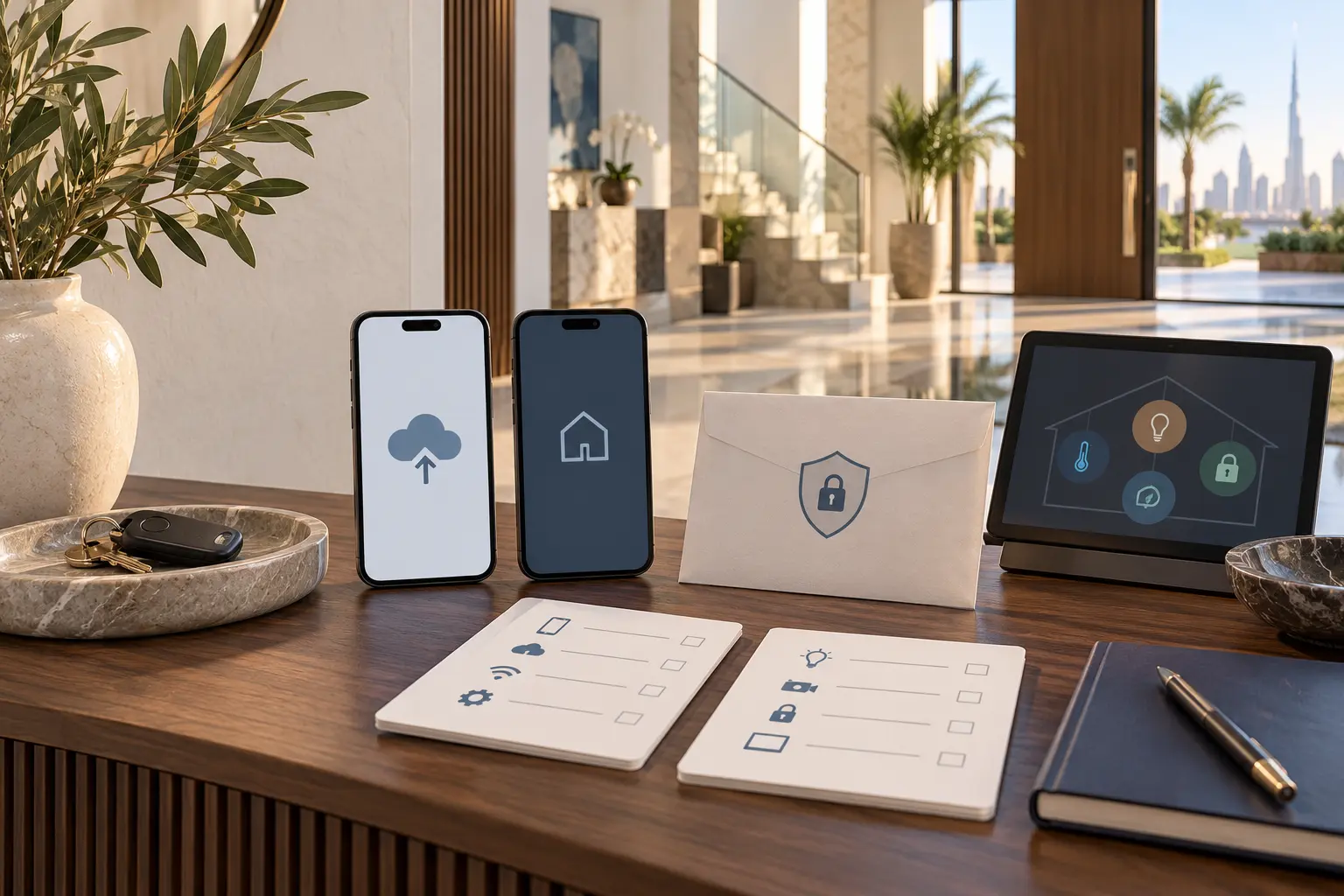
Use a sign-off list: owner accounts accessible, recovery method tested, password manager available, authenticators working, main home visible, key vendor apps signed in, essential notifications received, remote access confirmed, mobile credentials tested and local fallbacks available.
Then remove or revoke the old phone from accounts and vendor sessions as appropriate. Apple’s guidance on preparing an iPhone or iPad for sale or transfer says to transfer information first and remove personal information from the old device; it also highlights adding trusted numbers when the phone number will change. Follow the exact platform steps before erasing or handing over a device.
If the phone was lost or stolen, use the platform’s lost-device and account-security process instead of waiting for a normal migration. Revoke sensitive access, preserve other recovery methods and notify the relevant access or security provider. Do not reset an entire working home unless the platform and support team identify that as necessary.
Add the completed migration to the smart-home maintenance calendar with the date, phones removed, accounts checked, credentials reissued and any deferred item. Keep sensitive evidence in the owner’s protected record.
A successful phone replacement leaves the home predictable: the new device works, the old device no longer has unnecessary access, and the owner has a tested route back in if another phone is lost.
Request a smart-home account migration assessment with the platforms in use and whether the old phone is still available. Do not include passwords, recovery codes, access credentials or private camera details in the initial enquiry.