A smart home office should make focused work, study and video calls easier without turning the room into a complicated control booth. The useful brief starts with where people sit, what they do and which conditions interrupt them. Lighting, glare, network, sound, climate and privacy then become coordinated decisions rather than separate gadgets.
This guide helps Dubai villa owners, interior designers and fit-out teams define that room before ordering equipment. Duneva's villa home-automation planning service can coordinate everyday room controls with the wider lighting, shading, network and climate design.
Define the room's work modes
List the activities before drawing device positions. A room may support focused computer work, video meetings, reading, homework, confidential calls, creative work and occasional guest use. Record who uses each mode, the usual hours, the desk or table position and whether two people work at the same time.
Turn those activities into a short mode schedule. Focus may need comfortable task light, glare control and minimal interruptions. Video Call may add face lighting, a neutral background, the selected camera and microphone, and a temporary notification rule. Reading may use a chair away from the desk. Cleaning needs practical full light and simple local control.
Do not create a scene for every small preference. Start with the few states the room genuinely repeats, then keep brightness, temperature and shade position adjustable.
Fix the desk and camera views first
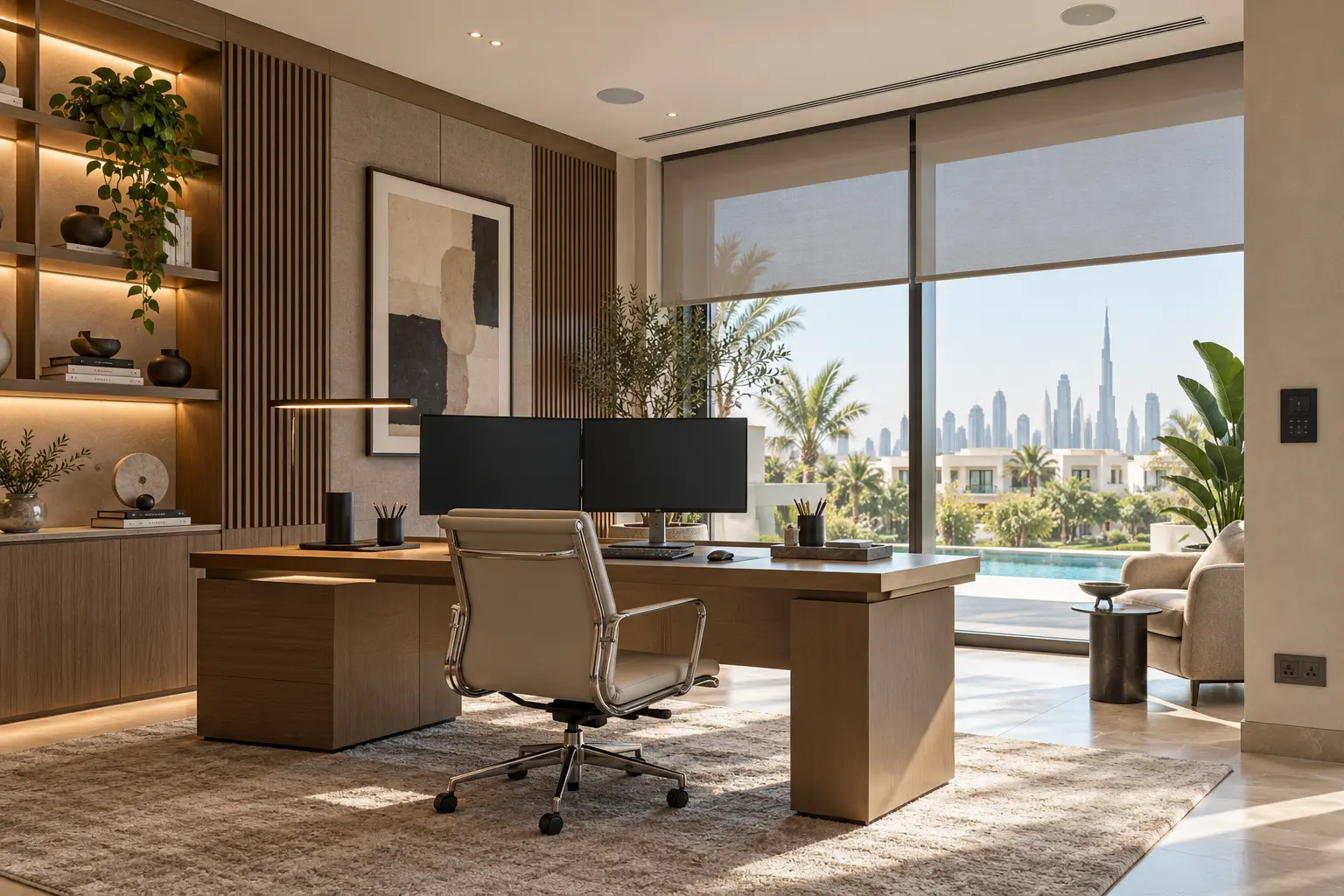
Place the desk using the real chair, screens, storage and circulation space. Check what appears behind the user on a video call, where daylight enters and whether a door opening interrupts the view. A beautiful desk centred on the window may create screen glare or put the user in silhouette.
Coordinate floor boxes, wall outlets, charging points and cable routes with the joinery drawings. Provide service access for a dock, power supply or network connection instead of sealing them behind fixed cabinetry. Keep mains work with the qualified electrical contractor.
Layer lighting around tasks and calls
Separate ambient, desk, face and accent lighting. Ambient light supports movement and general work. A task light serves paper or detailed activity. Video calls need balanced illumination on the face without a bright source directly behind the user or reflected in glasses and screens. Accent lighting should not create distracting contrast.
Lutron's current luxury residential lighting overview presents a home-office example using layered light and automated shades for focus, comfort and glare control. Treat this as design inspiration, not a promise that every fixture, driver or shade will work together. Confirm exact dimming compatibility, colour behaviour, load type, product availability and control interfaces in the written specification.
Control daylight from the seated position
Map the window orientation and check direct sun and bright-sky glare from the actual desk at representative times. The shade position needed to protect a screen may differ from the position that preserves the view or lights a reading chair.
Define a small number of understandable states such as Open, Glare Control, Privacy and Closed where the treatment supports them. Keep a physical wall control and a clear manual override. A temporary change needs a return rule so that a shade lowered for one meeting does not remain forgotten for days.
The automated daylight and glare-control guide covers façade goals, fabric samples, pockets, power, sensor choices and time-specific commissioning. Choose fabric using real samples at the window; a catalogue image cannot prove screen visibility or privacy.
Give the desk a dependable network path
Video calls depend on more than headline internet speed. The room needs a stable path from the device to the villa network and then to the service. Where practical, plan wired Ethernet for the main workstation, docking station or fixed conferencing equipment, with Wi-Fi serving mobile devices and flexible use.
Zoom's current system requirements publish different bandwidth recommendations for call formats and resolutions. Those figures are product-specific and do not account for every household's simultaneous use, Wi-Fi conditions, VPN or service-provider performance. Test the actual applications, devices and work schedule rather than promising a room based on a speed-test screenshot.
Use the Dubai villa Wi-Fi and network checklist to plan access-point locations, wired backhaul, equipment ownership and room-by-room acceptance. Keep business devices on the network arrangement approved by the household or employer, and do not bypass corporate security controls to simplify automation.
Plan audio for speech, not volume
Choose the microphone, speakers or headset around the room's acoustics and privacy needs. Hard floors, bare walls, glass and high ceilings can increase echo. A powerful ceiling speaker does not improve microphone pickup, and a hidden microphone should never be added without the users' clear knowledge and agreement.
If whole-home audio is present, keep the office as an independent zone and exclude it from casual entertaining groups by default. A meeting should not be interrupted because another room starts an all-home playlist. The multiroom audio zoning guide explains default grouping and source independence.
Keep climate controls within the HVAC boundary
Computers, screens, sun and long occupancy can change how the room feels. Ask the HVAC specialist to confirm the real zone, sensor position, air distribution and approved setpoint range. Do not assume the office can be controlled independently because a room interface shows a temperature.
A Work scene may request an agreed occupied setting, but it should not override equipment protections or conflict with another room on the same zone. Decide what happens after the occupant leaves, how long a temporary change persists and which local control remains available if the automation controller is down.
Avoid rapid responses to a single temperature or occupancy event. A person sitting still may not trigger a motion sensor consistently, while a sunny period may change the room before the sensor catches up. Commission the finished space under real equipment and daylight loads.
Make controls quiet and predictable
Place a physical control at the entrance and keep the most frequent actions obvious: Work, Video Call, Reading and Off may be enough. At the desk, a small keypad or approved interface can provide light, shade and temperature adjustment without opening several apps.
The smart-home keypad planning guide provides a method for consistent labels and scene scope. Avoid a button that closes shades, changes the entire floor and turns on a meeting platform with no clear feedback. Each action should affect only the documented room systems.
If presence or calendar information starts a scene, make that dependency visible and provide a manual alternative.
Protect calls, accounts and household privacy
Decide who may use the fixed computer, conferencing device, room microphone, camera and automation interface. Keep owner, guest and household-staff access separate. Do not store personal meeting accounts or documents on a shared room screen unless the household accepts that exposure.
A Work scene should not publish presence, calendar titles or call status to the whole household unless that behaviour is deliberately approved. Record where any room data is processed and who can change the automation.
Plan power and recovery
Test a safe restart sequence for the router or switch, automation interface, dock, displays and conferencing equipment. Confirm which functions remain local when the internet is unavailable. The smart-home power-resilience guide helps separate critical controls from convenience loads and document runtime expectations.
Keep a basic working route: local light, shade control and suitable temperature adjustment should not require a video-call account or cloud automation.
Commission a real working day
Test focus work, a video call, reading and room shutdown with the actual desk, screen, camera, microphone and applications. Check morning and afternoon glare, face lighting, call quality, network stability, HVAC noise, shade movement, scene labels and privacy controls. Then test a lost internet connection and removal of a guest user through an agreed safe method.
At handover, retain the mode schedule, desk and camera positions, lighting circuits, shade states, network ports, wireless design, audio devices, HVAC boundary, control labels, account permissions, power dependencies and support responsibilities. Add them to the smart-home handover checklist.
A successful smart office is calm, well lit and dependable. It gives work devices a stable network, protects the screen from glare, keeps calls private and leaves familiar controls available when a cloud service is not.
Request a home-office and study-room assessment with the property stage, room layout and systems you want coordinated. Do not include employer credentials, meeting links or confidential network details in the initial enquiry.